

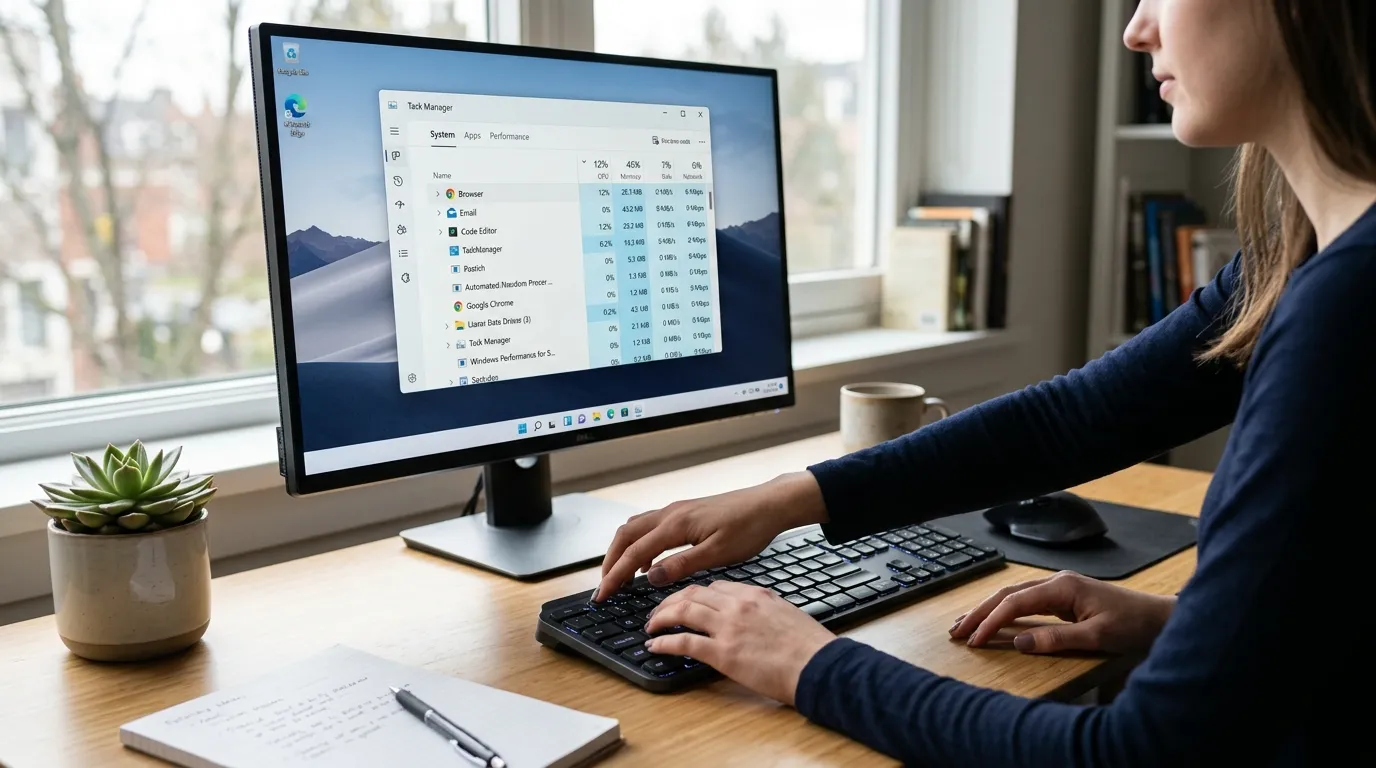
Mastering system performance requires quick access to vital tools. Finding the right shortcut for task manager instantly resolves freezing applications, monitors hardware resources, and restores computer stability efficiently.
Managing your computer system effectively requires knowing exactly how to access critical administrative tools. Utilizing a reliable shortcut for task manager ensures you can quickly terminate unresponsive programs, monitor CPU usage, and manage startup applications to maintain peak computer performance and stability.
Why You Need a Quick shortcut for task manager

Every computer user experiences software freezes, sluggish performance, or unexpected application crashes. When your operating system stops responding to normal commands, knowing the right shortcut for task manager becomes essential. This utility provides a direct window into your computer’s brain, allowing you to see exactly which programs consume your memory, processor power, and network bandwidth. Relying on a fast shortcut for task manager saves you from performing a hard reset, which can result in data loss and potential system corruption.
By bypassing traditional menu navigation, a direct keyboard shortcut for task manager cuts through system hangs. When an application completely locks up your screen, the standard graphical user interface often fails to respond to mouse clicks. Hardware-level keyboard interrupts provide a reliable way to regain control. Understanding these methods elevates you from a casual user to a proficient system operator.
Primary Methods to Access the Utility
We have several distinct ways to launch this critical system tool. Each method serves a specific purpose depending on how severely your system is lagging or freezing.
The Direct Method: Ctrl + Shift + Esc
The absolute most efficient shortcut for task manager is pressing Ctrl + Shift + Esc simultaneously. This key combination launches the application directly onto your desktop without switching screens or navigating secondary menus. Because it requires only one hand for most users and bypasses the security screen, it remains the preferred shortcut for task manager among IT professionals and developers. This command tells Windows to immediately open the utility, making it perfect for quickly checking resource usage during gaming or heavy video editing sessions.
The Classic Interrupt: Ctrl + Alt + Delete
Historically, the most famous keyboard combination in computing is Ctrl + Alt + Delete. While this no longer opens the utility directly in modern Windows versions, it brings up the Windows Security screen, which contains a dedicated link to the tool. We consider this the ultimate fallback shortcut for task manager because it operates at a hardware interrupt level. If a full-screen game or a severe software crash completely locks your display, Ctrl + Alt + Delete will almost always force the operating system to pause the problematic software and give you the option to open the management console.
The Power User Menu: Windows Key + X
Microsoft introduced the Power User Menu in recent Windows versions to give administrators fast access to system tools. By pressing Windows Key + X, or right-clicking the Start button, you reveal a hidden menu containing a direct link. While technically a two-step process, many users find this shortcut for task manager highly convenient when their hands are already on the mouse or when utilizing touch-screen devices.
Creating a Custom shortcut for task manager
Sometimes keyboard combinations are not the most convenient option, especially for users with accessibility needs or those who prefer customized desktop environments. You can easily create a dedicated icon-based shortcut for task manager on your desktop or taskbar.
Step-by-Step Desktop Icon Creation
To build a permanent, clickable shortcut for task manager on your desktop, follow these simple steps. Right-click any empty space on your desktop, select “New,” and then click “Shortcut.” A prompt will appear asking for the location of the item. Type taskmgr.exe into the field and click “Next.” Name your new icon and finish the process. You now have a custom visual shortcut for task manager that you can double-click anytime.
Pinning to the Taskbar
For even faster mouse access, you can pin the application directly to your taskbar. Open the utility using any shortcut for task manager we previously discussed. Once the program is running, right-click its icon on your taskbar and select “Pin to taskbar.” Now, you have a permanent, one-click solution available at the bottom of your screen at all times.
Navigating the Interface
Once you successfully deploy a shortcut for task manager, you must understand how to read the wealth of data presented to you. The interface contains several tabs, each dedicated to a different aspect of system performance.
The Processes Tab
The first screen you see after using a shortcut for task manager is the Processes tab. This section lists every application and background process currently running on your machine. You can sort this list by CPU, Memory, Disk, or Network usage. If your computer sounds like a jet engine, sorting by CPU will instantly reveal which application is forcing your processor to work so hard. Right-clicking an offending program here allows you to select “End task,” instantly terminating the software.
The Performance Tab
For users who love data, the Performance tab offers real-time graphs detailing your hardware’s workload. After deploying your favorite shortcut for task manager, click this tab to monitor your processor speed, RAM availability, and active storage drive read/write speeds. This section is incredibly valuable for diagnosing hardware bottlenecks. For instance, if your disk usage constantly sits at 100%, it might be time to upgrade from a traditional hard drive to a solid-state drive. According to resources from Microsoft Learn, monitoring these metrics regularly helps predict hardware failures before they occur.
Startup App Management
Computers often slow down over time because too many applications launch automatically during the boot sequence. Utilizing a shortcut for task manager allows you to access the Startup tab. Here, you can review every program permitted to start with Windows. Disabling unnecessary applications drastically reduces your boot time and frees up system memory for the tasks you actually want to perform.
Advanced Features and System Monitoring

Beyond closing frozen apps, the modern interface offers advanced features that many users overlook. After utilizing a shortcut for task manager, you can access the Details and Services tabs. These areas allow advanced users to set process priorities. Setting a video rendering application to “High” priority forces the operating system to allocate more CPU cycles to that specific task, finishing the job faster.
Furthermore, you can monitor GPU temperatures and 3D rendering loads directly within the console. Gamers frequently use a secondary monitor to display these metrics. Having a quick shortcut for task manager makes it easy to keep an eye on graphics card temperatures during intense gaming sessions, ensuring the hardware does not overheat.
Comparing Access Methods
Different situations require different approaches. This table compares the various methods for opening the console.
|
Access Method |
Speed |
Best Use Case |
Bypasses Severe Freezes |
|---|---|---|---|
|
Ctrl + Shift + Esc |
Instant |
Quick resource checks |
No |
|
Ctrl + Alt + Delete |
Fast |
Full-screen app lockups |
Yes |
|
Windows Key + X |
Moderate |
Mouse-heavy workflows |
No |
|
Taskbar Pin |
Instant |
Everyday management |
No |
|
Desktop Icon |
Moderate |
Visual organization |
No |
Using the most appropriate shortcut for task manager based on your specific situation saves frustration and prevents unnecessary system reboots.
Common Mistakes to Avoid
When users discover a new shortcut for task manager, they sometimes become overly aggressive with closing processes. Avoid these common pitfalls to keep your system stable.
- Closing Windows Processes: Never end a task named “Windows Explorer” or “Client Server Runtime Process” unless you know exactly what you are doing. Terminating core system functions will crash your computer immediately.
- Ignoring the Startup Impact: When disabling startup apps, pay attention to the “Startup impact” column. Disabling low-impact apps yields minimal benefits, while disabling high-impact apps drastically improves boot times.
- Assuming High RAM Usage is Bad: Modern operating systems intentionally use available RAM to cache files for faster access. Unless you are hitting 100% usage and experiencing slowdowns, high memory allocation is normal.
- Forgetting to Run as Administrator: Some advanced features require elevated privileges. If you cannot change a process priority after using your shortcut for task manager, you need to open the utility with administrator rights.
Pro Tips for Power Users
Maximize your efficiency with these expert-level strategies.
- Set the Default Tab: You can configure the utility to always open to your preferred tab. Go to Options > Set default tab, and choose “Performance” if you primarily use your shortcut for task manager to monitor hardware.
- Always on Top: If you need to monitor resources while working in another application, check “Always on top” under the Options menu. This keeps the window visible over your other programs.
- Expand the Columns: Right-click the column headers in the Processes tab to add more data points, such as “Command Line” or “Process ID,” which helps identify malicious software hiding under generic names.
- Use the Search Bar: Recent updates introduced a search bar at the top of the window. After executing a shortcut for task manager, simply type the name of the rogue app instead of scrolling through hundreds of background processes.
Troubleshooting Utility Failures
Occasionally, malware or severe system corruption prevents you from accessing system tools. If you use a shortcut for task manager and nothing happens, or if the window opens and immediately closes, you likely have a virus actively blocking the application.
In these scenarios, you must rely on alternative methods. Booting your computer into Safe Mode prevents most third-party software (including malware) from loading. Once in Safe Mode, try your shortcut for task manager again. If it works, run a comprehensive antivirus scan to locate and remove the infection. Additionally, running the System File Checker (SFC) through an elevated Command Prompt can repair corrupted system files that might be preventing the console from launching.
The Evolution of Resource Management
The concept of process management has evolved significantly since the early days of personal computing. In earlier Windows versions, the tool was a simple list of open windows. Today, it is a comprehensive diagnostic suite. Knowing a reliable shortcut for task manager grants you access to capabilities that previously required expensive third-party diagnostic software.
By integrating network monitoring, disk usage statistics, and GPU tracking into a single unified interface, Microsoft transformed the utility into an indispensable dashboard. Educating yourself on how to read this dashboard empowers you to make informed decisions about hardware upgrades, software purchases, and overall digital hygiene.
Maintaining System Health over Time

Routine system maintenance prevents the sudden crashes that force you to use a shortcut for task manager in a panic. Regularly updating your drivers, performing disk cleanups, and running antivirus scans keeps the underlying architecture clean. However, software environments are complex, and memory leaks or poorly coded applications will always exist.
A memory leak occurs when a program fails to release RAM back to the operating system after it finishes using it. Over time, the program consumes all available memory, grinding your system to a halt. Recognizing the signs of a memory leak early by using a quick shortcut for task manager allows you to restart the offending application before it affects your entire workflow.
Understanding Background Services
Many users open the utility and are shocked to see hundreds of processes running when they only opened a web browser. Most of these are Windows background services that manage everything from your Wi-Fi connection to your printer spooler.
While using a shortcut for task manager, switch to the Services tab to view these underlying components. Unlike active processes, services run quietly in the background without a user interface. If a specific piece of hardware stops working, such as your Bluetooth adapter, restarting the associated service here often resolves the issue without requiring a full system reboot.
Optimizing for Gaming
PC gamers rely heavily on system performance optimization to maintain high frame rates. Background applications downloading updates or syncing cloud files can cause massive latency spikes during competitive matches. Before launching a demanding game, seasoned gamers use a shortcut for task manager to close unnecessary launchers, chat applications, and web browsers.
By ensuring maximum CPU and RAM availability, you provide your game with the raw power it needs to render complex environments smoothly. Furthermore, monitoring the GPU tab helps determine if graphic settings are set too high, allowing you to fine-tune your visual experience based on empirical data rather than guesswork.
The Future of Task Management
As artificial intelligence and machine learning become deeply integrated into operating systems, task management will likely become more automated. Windows may soon predict which applications will freeze and automatically allocate resources to prevent crashes. However, manual oversight will always remain necessary for advanced troubleshooting. Memorizing a shortcut for task manager ensures you retain ultimate authority over your machine, regardless of how automated the operating system becomes.
Taking control of your digital environment reduces stress and drastically improves your productivity. By understanding the underlying mechanics of process execution and resource allocation, you transform from a passive consumer of technology into an active system administrator.
Conclusion
Mastering system administration starts with knowing how to command your operating system quickly. Using the correct shortcut for task manager empowers you to resolve software lockups, optimize startup routines, and monitor hardware health effortlessly. Take control of your computer’s performance today and practice these keyboard commands to ensure your workflow remains smooth, stable, and incredibly efficient.
Frequently Asked Questions
1. What is the fastest shortcut for task manager?
The absolute fastest keyboard combination is Ctrl + Shift + Esc. It launches the utility directly onto your screen immediately, bypassing the Windows security screen entirely.
2. Why does Ctrl + Alt + Delete look different now?
In modern Windows versions, Ctrl + Alt + Delete triggers a hardware-level interrupt that opens a secure menu containing options to lock the computer, switch users, sign out, or open the management console. It was changed to prevent malicious software from mimicking the login screen.
3. How do I pin a shortcut for task manager to my taskbar?
Open the utility using any keyboard command. Once the program icon appears on your taskbar at the bottom of the screen, right-click the icon and select “Pin to taskbar” for permanent, one-click access.
4. What should I do if my shortcut for task manager does not work?
If keyboard commands fail, your system might be severely frozen or infected with malware. Try pressing the Windows Key to see if the start menu opens. If nothing responds, perform a hard reboot. If the utility closes itself instantly upon opening, run a malware scan.
5. Is it safe to end any process running on my computer?
No. Ending critical system processes, such as Windows Explorer or System Idle Process, can cause your operating system to crash immediately, leading to unsaved data loss. Only end tasks for applications you recognize.
6. Can I create a desktop shortcut for task manager?
Yes. Right-click your desktop, select New > Shortcut. In the location field, type “taskmgr.exe” and complete the wizard. You can now double-click this icon to launch the console.
7. Why is my disk usage at 100 percent in the console?
High disk usage often occurs due to background Windows updates, heavy antivirus scans, or failing hardware. If you are using an older mechanical hard drive (HDD), upgrading to a solid-state drive (SSD) is the most effective way to resolve this bottleneck permanently.
8. How does managing startup apps improve computer speed?
Every app that launches at startup consumes RAM and CPU cycles before you even begin working. By disabling non-essential apps in the Startup tab, you free up these resources, allowing your operating system to boot faster and run smoother.
9. Can I use a shortcut for task manager on a Mac?
Mac operating systems do not use this specific utility. Instead, they use a tool called Activity Monitor. The closest keyboard equivalent to force quit an application on a Mac is Command + Option + Escape.
10. How do I make the window always stay on top of other apps?
Open the utility, click on the “Options” menu at the top of the window (or the settings gear icon in newer Windows 11 versions), and check the box labeled “Always on top.” This is highly useful for monitoring resources while using other full-screen software.